Apple Never Told You About These 20 iOS 26 Features
Funny animals short video
watchOS 26.1 is Out! - What's New?
* Indicates author is a member of MAGIC
Meeting information
Date
21 January 2026
Time
4:00 - 5:00 p.m.
Presentation:
• Introduction with Mike Turnbull
• "Can we Talk" with Gary McIntyre
Location:
by Zoom online
NOTE: There will be no meeting in December 2025
MAGIC Minutes for November 2025
by Wendy Shimada, Secretary
At 4:03 p.m. President Mike Turnbull welcomed everyone and called the meeting to order with 16 attendees present within a few moments. Mike noted that this month's Zoom meeting invitation may have seemed a little confusing, due to some changed Zoom auto-format defaults but he assured everyone that next month's invitation will hopefully be simplified by just providing the one click link to attend the meeting. He also shared that he noticed in the iOS 26 iPhone update, the wake-up timer has changed from a tap to a slide, a new feature that he likes.
Mike also reminded everyone that this will be the last meeting of the year as we don't have December meetings. January 21, 2026 is our next meeting. However, the December newsletter will arrive as usual. Before asking for the Treasurer's report, Mike reminded everyone to please send in any requests or ideas for future monthly meeting info sessions.
Treasurer Carol Heimgartner provided a bank balance of $4276.28 (after the monthly Whidbey Tel website hosting bill is deducted later today.) She reminded everyone that MAGIC always takes donations.
Robert Elphick then presented a very interesting session all about Apple's Music app.
After the presentation, Robert and Ron answered a few more members' questions, and the meeting was adjourned at 5:05 p.m.
MAGIC Musings
Seasons Greeting (already) Magic members,
Mrs. Mike has replaced her 13 yr. old non-upgradable Windows computer with the new M4 chip iMac basic model. She likes working on a desktop and was able to migrate (with some effort) all her old data and tax information, therefore success. There are learning curves and bumps in the road with new equipment, as usual.
There is no Magic Zoom Meeting during December. Hope everyone has an enjoyable holiday season. The first meeting in 2026 will be on Wednesday, January 21st.
Cheers,
Mike
MAGIC President
HAPPY YULETIDE!
Note: This Software Update section of the newsletter lists the most relevant Apple updates. Not all updates are listed for all products. Additionally, I'll add other pertinent updates on occasion.
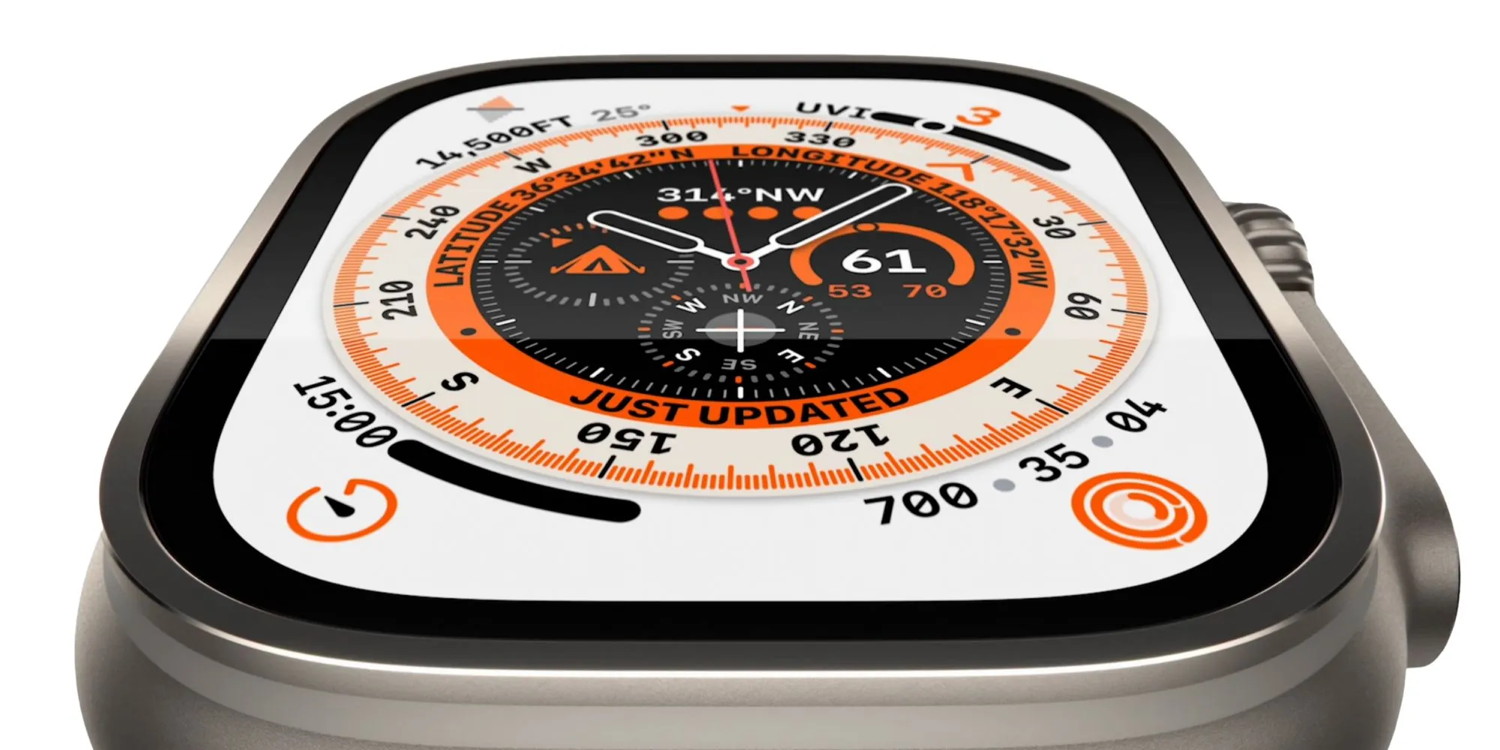
watchOS 26.2 has four changes for Apple Watch, here's everything new
by Ryan Christoffel, 9to5mac
watchOS 26.2 is almost here, and thanks to Apple's official release notes, we know exactly what's changing. Here's everything new coming to Apple Watch in watchOS 26.2.
watchOS 26.2 updates Sleep Score, adds Enhanced Safety Alerts, and more
Today Apple debuted the RC (release candidate) version of watchOS 26.2. With it, the full release notes are now available.
Apple says the update includes "improvements and bug fixes" and lists out the following:
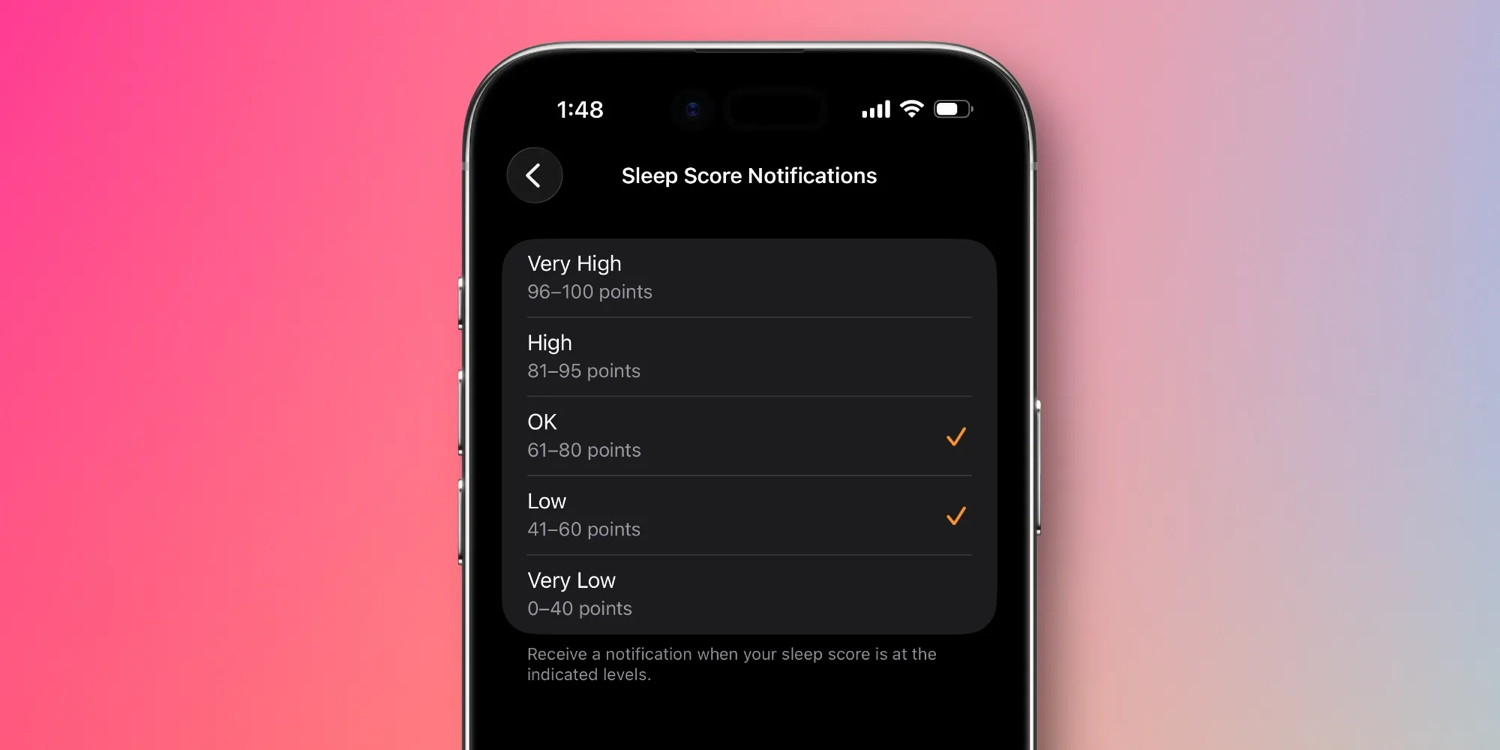
Refinements to sleep score classifications and notification controls
An issue where the Music app fails to advance to the next song
Enhanced Safety Alerts can inform you about imminent threats such as floods, natural disasters, and other emergencies, with rich information like a map of affected areas and links to additional safety guidance (available in the US)
So that's one new feature (Enhanced Safety Alerts), one updated feature (Sleep Score), and also one key bug fix (Music song advancement).
On the Sleep Score front, you can read about the changes Apple is making in this in-depth explainer.
During the beta cycle, I've found Apple's Sleep Score changes a solid improvement that better match my own view of how I slept. New grade ranges can be seen below:
Beyond these three changes, one other known update in watchOS 26.2 has to do with Wi-Fi sharing between iPhone and Apple Watch for EU users.
To comply with the EU's DMA, Apple is changing how Wi-Fi networks are shared between iPhone and Apple Watch. The change is effective with iOS 26.2 and watchOS 26.2, and you can read more about it here.
iOS 26.1 is now Apple's recommended update for users still on iOS 18
by Ryan Christoffel, 9to5mac
iOS 26 launched to all users in September, but it was previously only available as a secondary update inside Settings, with versions of iOS 18 given priority. Now, Apple has started recommending iOS 26.1 as the new default update for users.
iPhones running iOS 18 will default to iOS 26.1 as next update
It used to be that when Apple released a major new iOS version, it was immediately promoted as the default update inside the iPhone's Settings app.
But in recent years, the company has slowed the rollout of big software versions.
For example, back in September, iOS 26 and iOS 18.7 released on the same day.
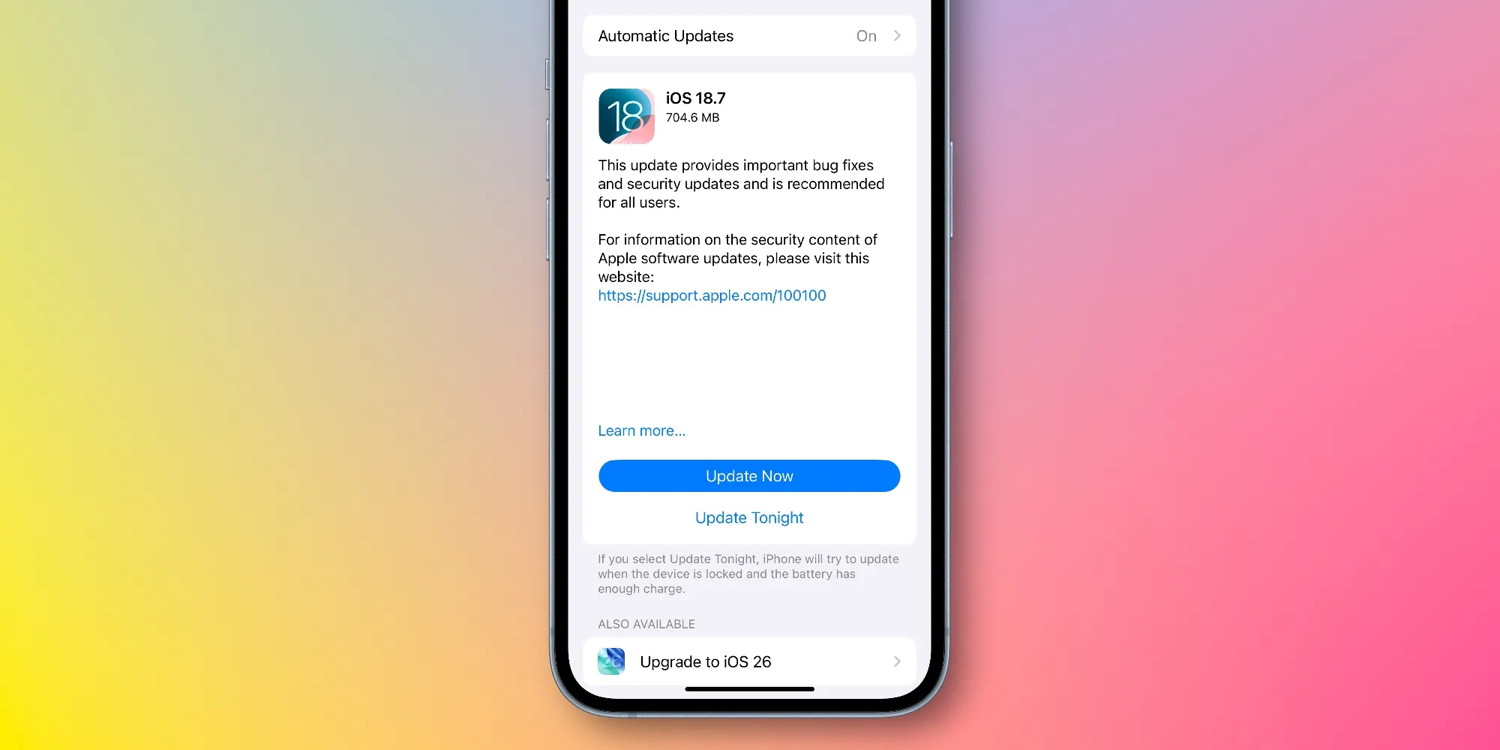
iPhone users who opened Settings ⇾ General ⇾ Software Update would see iOS 18.7 featured prominently. You had to scroll down to find a small banner mentioning iOS 26 as an alternative update.\
That same behavior continued after iOS 26.1 and iOS 18.7.2 released last month. But now, it seems Apple is finally ready to push more iPhone users to upgrade to its latest major software version.
As noted by MacRumors, the iPhone's Software Update screen now features iOS 26.1 prominently, while iOS 18.7.2 has been demoted to 'alternate version' status.
Users may now see a badge on the Settings app indicating the new update is available, but it won't be installed without direct user action. For major OS upgrades, users need to manually install the new version even when they have 'Automatic updates' turned on.
This change comes ahead of iOS 26.2 launching in the next couple weeks and Apple's corporate holiday break shortly thereafter.
It seems instead of waiting for iOS 26.2 to debut, Apple wanted to give users more time to experience the latest update. Perhaps for the purpose of having more chances to assist users with any concerns or troubles before the holidays get too close.
Mac users can get these Microsoft apps for life for $50
by DealPost Team
It's now only $49.97 to get Microsoft Office for life.
Mac users who don't want another subscription hanging over now have a way out. Instead of paying for Microsoft 365 every month, take a look at this Microsoft Office Home and Business 2021 lifetime license. It comes with many of the same apps, but it's only $49.97 for life while it's on sale (reg. $219).
Here's what's included:
Word
Excel
PowerPoint
Outlook
Teams (Basic)
OneNote (free version)
These apps run natively on macOS, so everything feels like normal desktop software without any weird compatibility issues. Activation is simple. Redeem your code within seven days, sign in with your Microsoft account, and the license attaches to your Mac. The suite works with current macOS versions like Sonoma, Sequoia, and Tahoe.
If you want the classic Office apps on your Mac but don't feel like dealing with another Microsoft 365 charge, this license keeps things simple.
Right now, it's only $49.97 to get a Microsoft Office 2021 lifetime license, but this sale ends soon.
Apple Books launches Year in Review, plus best books of 2025
by Ryan Christaoffel, 9to5mac
It's the season for year-end recaps. Apple Music Replay debuted yesterday and Apple Books' Year in Review is now available too, alongside Apple's picks for best books of 2025.
Apple Books now offers end of year recaps and top picks
For the last couple years, Apple Books has offered a special Year in Review feature in the style of Apple Music Replay and Spotify Wrapped.
It's a great overview of all the books you read, top genres, authors, breakdowns of reading activity by month, and more.
Now, the 2025 Year in Review is available inside the Apple Books app.
You'll see it featured prominently inside the Home tab.
Also in the Home tab, Apple's editorial team has published its picks for the best books and audiobooks of 2025.
Best Books of 2025 include these and more:
1929 by Andrew Ross Sorkin
Wild Dark Shore by Charlotte McConaghy
Don't Let Him In by Lisa Jewell
Mother Mary Comes to Me by Arundhati Roy
Presumed Guilty by Scott Turow
Arcana Academy by Elise Kova
King Sorrow by Joe Hill
Motherland by Julia Ioffe
Best Audiobooks of 2025 include these and more:
1929 by Andrew Ross Sorkin
The Knight and the Moth by Rachel Gillig
Wild Dark Shore by Charlotte McConaghy
Sunrise on the Reaping by Suzanne Collins
The Proving Ground by Michael Connelly
Broken Country by Clare Leslie Hall
Buckeye by Patrick Ryan
The Next Conversation by Jefferson Fisher
I continue to wish Apple would launch a Books+ subscription service along the lines of Audible and Kindle Unlimited. So much modern media consumption happens through subscriptions, not standalone purchases.
But even without a Books+ option, my favorite place to read books remains Apple Books.
Snowy adds Christmas lights, snow, and an Aqua-inspired wallpaper to your Mac for free
by Zac Hall, 9to5mac
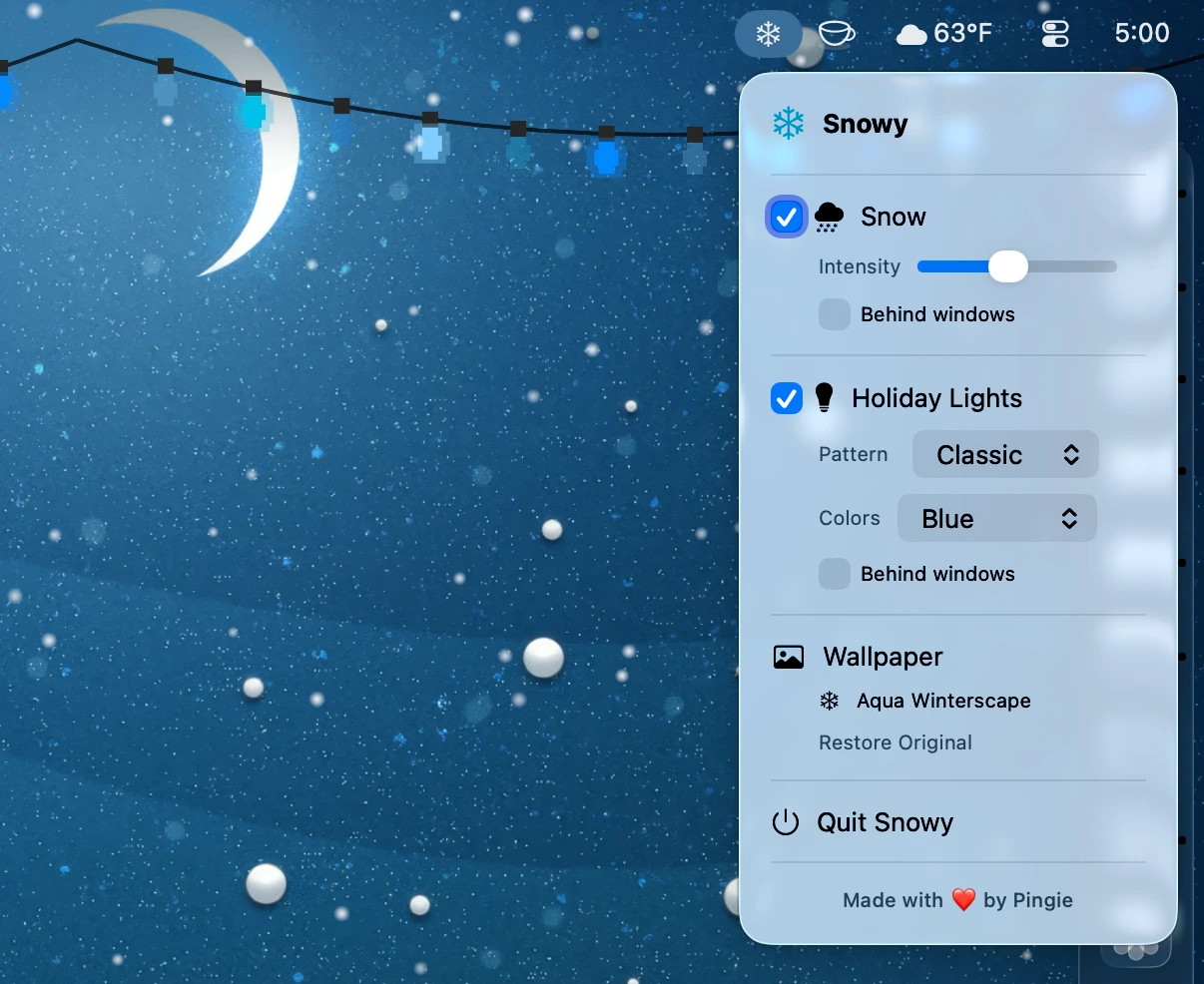
Looking for a free way to add a little cheer to your Mac for the holidays? Snowy is a free Mac App Store app that includes Christmas lights, a fun snow effect, and a festive, Aqua-inspired wallpaper.
Snowy lives in the Menu Bar on your Mac. From there, you can toggle both snow and holiday lights on and off. You can also decide to always show snow or hide snow behind open app windows. Snow intensity can also be adjusted from the default to adjust how much snowfall appears when active.
The holiday lights feature has two more settings: pattern and color. Patterns include twinkle, wave, steady, and classic. In classic mode, which is my preference, the bulbs appear in retro 16-bit. Color options are multicolor, warm white, candy cane, blue, and rainbow.
The free Mac app includes a free desktop wallpaper called Aqua Winterscape. It features a Christmas tree decorated in Aqua-design Mac window controls as ornaments. You can revert back to your previous wallpaper with one click from the Snowy Menu Bar app.
Snowy is a brand new app that you can download for free from the Mac App Store here, or directly from the web here. Give it a shot if you want some whimsical winter fun on your Mac!
The Liquid Glass interface appearance is a fairly significant change in macOS Tahoe, bringing a lot of transparency, translucency, and shininess to the Mac interface appearance. While some users enjoy the new look, other Mac users may find it distracting, cumbersome, or difficult to read and interact with, and perhaps even conducive to causing eye strain. If you're in the latter camp you might be wanting to disable the Liquid Glass user interface and revert back to the prior look of MacOS. While you can't change back to the old look entirely, you can mostly disable Liquid Glass on macOS Tahoe with a few simple adjustments that reduce the look considerably.
How to Turn Off Liquid Glass on macOS Tahoe, Mostly
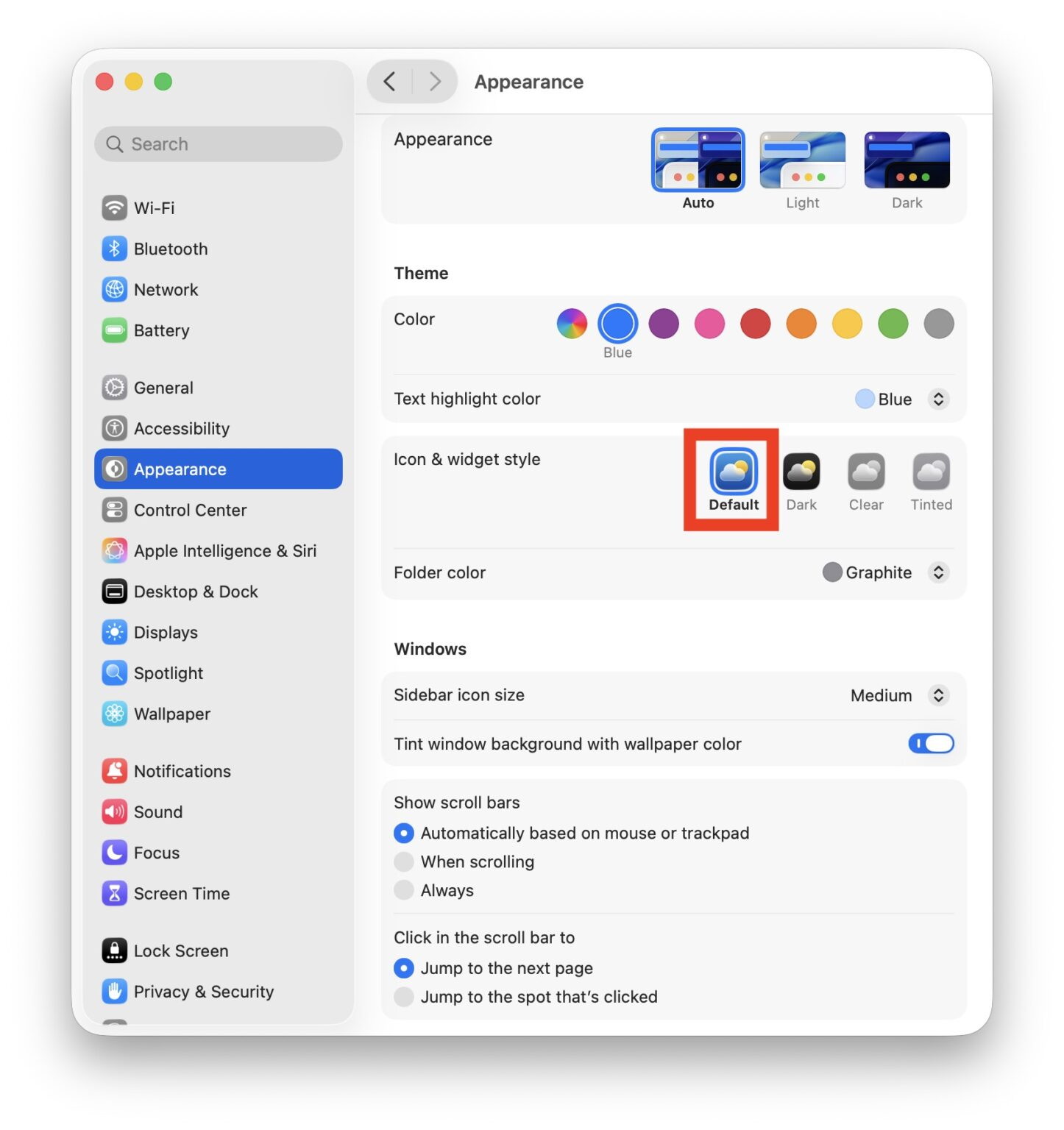
We're going to focus on making two specific tweaks to the macOS Tahoe interface to dramatically reduce the Liquid Glass interface appearance. First we'll be turning off the transparency effects, and second we'll be using the traditional icons rather than the Clear or Tinted choices.
Open "System Settings" from the Apple menu and go to "Accessibility"
Go to "Display" and toggle the switch for "Reduce Transparency" to the ON position
Disable most of Liquid Glass on macOS Tahoe everywhere by toggling reduce transparency to the ON position
The macOS Tahoe interface will now more closely resemble prior MacOS versions, with much less transparency throughout the operating system, greater contrast and legibility, and without colored or clear icons
While these are visual changes, if you feel like performance has been off since updating to macOS Tahoe then you might even notice a perceptual speed boost by turning off the transparency effects, since your Mac will be using fewer system resources to draw all the fancy eye candy on screen.
Optional: Try "Increase Contrast" to Dramatically Change the macOS Tahoe UI
If the above tweaks aren't enough and you still see too many shadows, transparencies, translucencies, and weird color situations with poor contrast, another optional tweak is Increase Contrast. Try the "Increase Contrast" setting within System Settings > Accessibility > Display > to even further reduce the look of Liquid Glass. But, as you'll see, this setting is fairly dramatic, and it can make macOS look so unusual and kind of like a juvenile line drawing, that many Mac users won't want to use that setting at all. Ideally the "Increase Contrast" setting would be an adjustable sliding scale that you could increase or decrease the intensity of, but that could be wishful thinking.
Apple gift guide 2025: Best deals and buying advice for every product
by Chance Miller, 9to5mac
As the holiday shopping season kicks into full swing, it's important to make sure you're buying the right Apple product and getting the best deal possible. Here's everything you need to know about what to buy and how to score some big savings on the best Apple gifts of the year.
Updated December 5, 2025: The latest pricing on MacBook Air, AirPods Pro, AirPods 4, and more.
iOS 26 gives Apple's Calendar app a convenient new advantage
by Ryan Christoffel, 9to5mac
iOS 26 is a huge update for iPhone, with a Liquid Glass design and lots of new features for built-in apps like Wallet, Messages, and Music. One popular app—Apple Calendar—mostly got overlooked this year, but it did gain one key new advantage: event creation via screenshots.
Adding Calendar events is now as easy as taking a screenshot
If you've used iOS 26 very much, you may have noticed that it changes the default behavior for screenshots.
Rather than screenshots appearing as a floating thumbnail in the bottom-left corner, they now open a fullscreen UI by default.
You can always revert to the old behavior if you'd like.
But the main reason for this change is that Apple has upgraded screenshots with new "visual intelligence" powers on all AI-compatible iPhones.
One of those new screenshot features involves Apple's Calendar app.
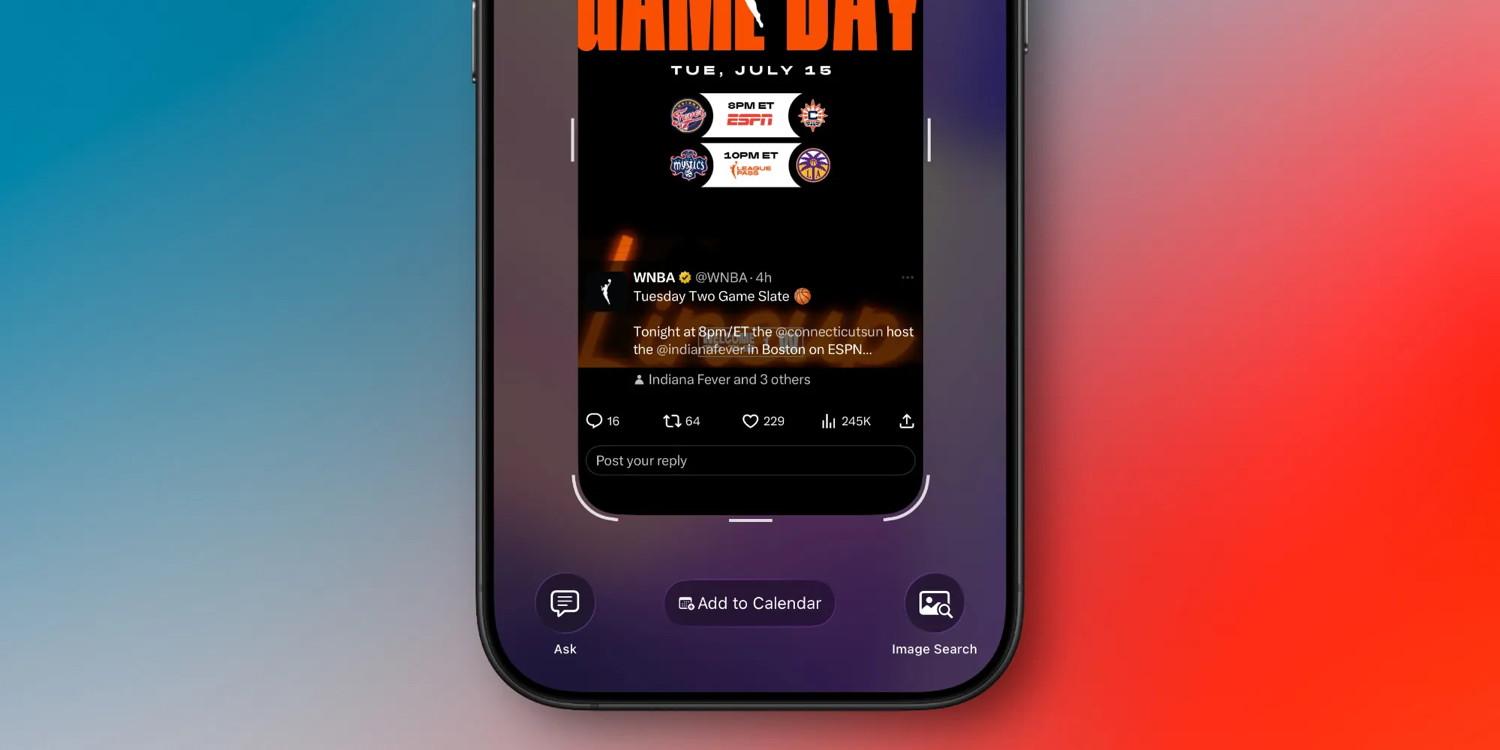
Take a screenshot of anything containing a calendar event, and iOS 26 provides a convenient new button at the bottom of the screen: 'Add to Calendar.'
Note: this button only appears inside the default fullscreen UI. So if you've switched back to the thumbnail view, you'll need to first tap the thumbnail to see it.
How 'Add to Calendar' works in iOS 26
'Add to Calendar' does exactly what it sounds like. Using Apple Intelligence, the event details displayed in your screenshot will be turned into an actionable calendar event.
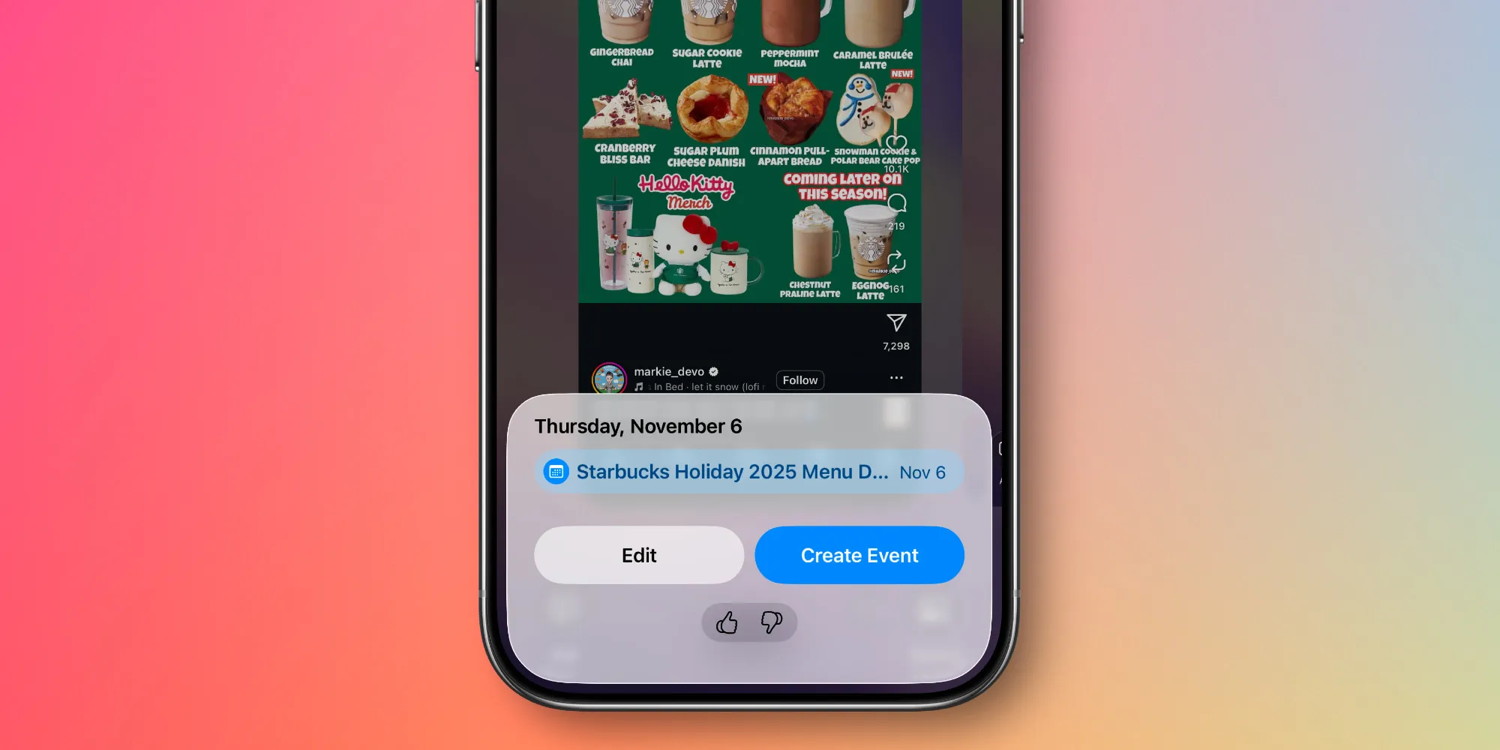
After hitting 'Add to Calendar,' you'll get to preview exactly what's going on your calendar. If it all looks accurate, you can hit 'Create Event' and you're done.
If you need to change a detail, there's an 'Edit' button that loads the Calendar app's standard event creation panel. For me, one common use for 'Edit' is to change which calendar I'm adding to.
Once you get used to adding calendar events in this way, it becomes a nice differentiator for Apple's default Calendar app.
And if you still prefer to use a third-party app, try adding your calendar account credentials into iOS 26's Settings ⇾ Apps ⇾ Calendar ⇾ Calendar Accounts. Depending on your calendar service and app, this could potentially create some data syncing issues. But if those are proven non-issues, you can benefit from Apple Calendar's screenshot feature even while most of your calendaring happens in a separate app.
AirPods keep getting better: How to use the newest features
by chance Miller, 9to5mac
Did you just unbox some new AirPods 4 or AirPods Pro thanks to the killer Black Friday and Cyber Monday deals? If so, there's a lot you need to know.
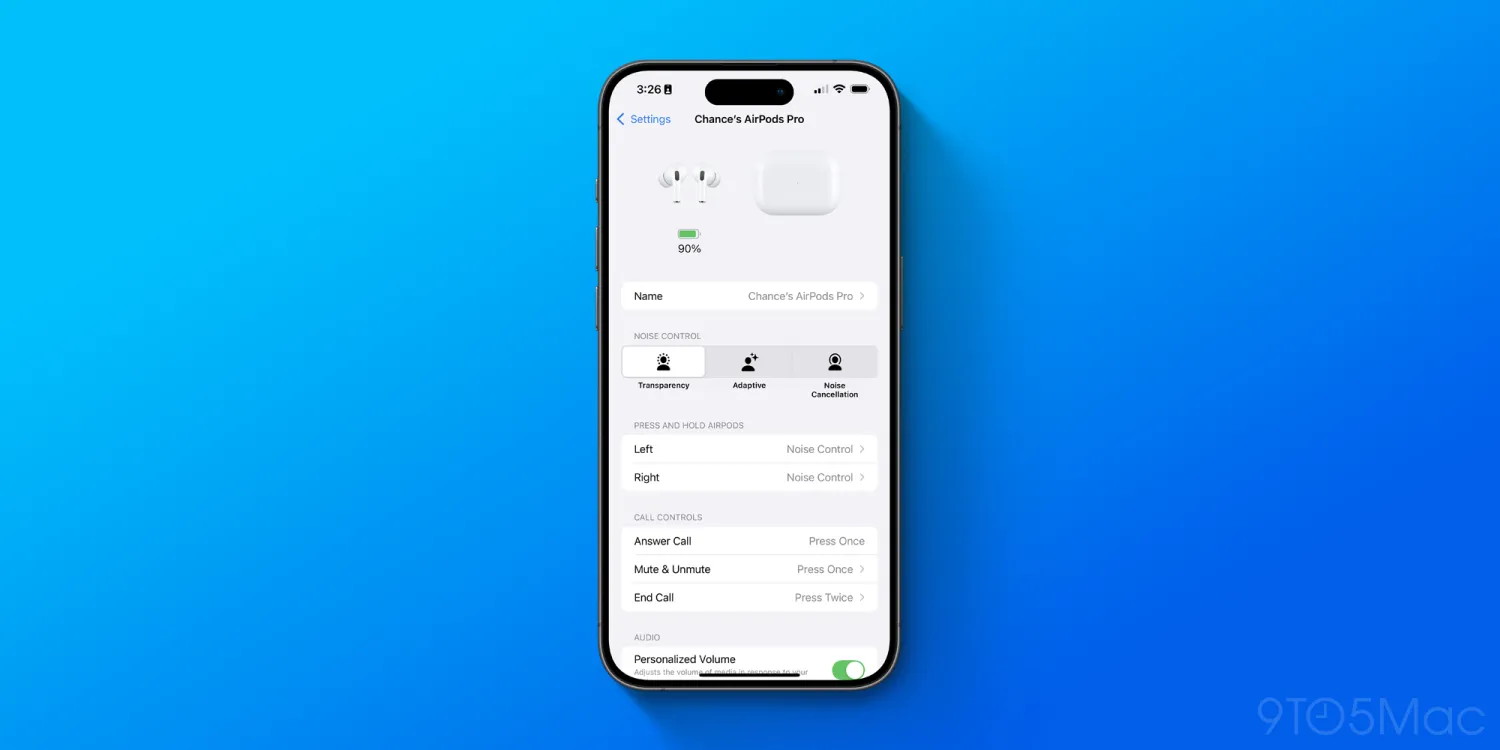
Over the last two years, AirPods have gotten significantly better thanks to new software updates from Apple. Here's a rundown of new features you should try that were introduced as part of iOS 18 and iOS 26.
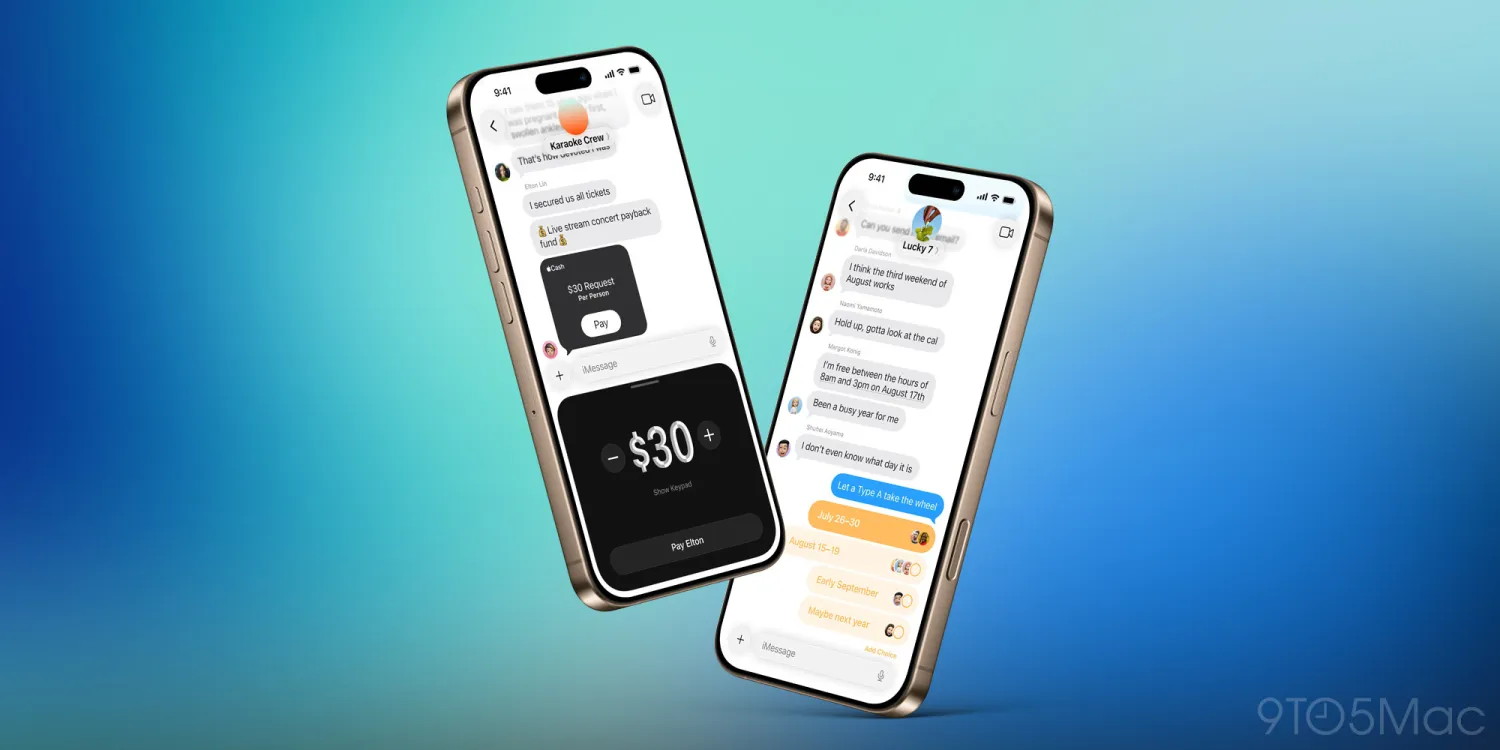
iOS 26.2 will add three new ways to customize your iPhone
by Andrew O'Hara, appleinsider
iOS 26.2 is launching to all users very soon, and it will introduce several new ways to customize the way your iPhone looks and works. Here's what's coming.
We mentioned last week that in iOS 26.1, Apple changed how the Clock app icon's seconds hand moves in low power mode. Instead of continuously moving, the seconds hand ticks with each second like a quartz clock.
Analog faces on new Apple Watches have a similar behavior, using a sweeping seconds hand in active mode and a ticking seconds hand in always on mode. If you're like me and prefer the quartz-like movement, there's a workaround that can help.
Apple Watch has always used a continuously moving seconds hand on analog watch faces, like an automatic movement watch. That didn't change until Apple Watch Series 10. The displays on Apple Watch Series 10/11 and Apple Watch Ultra 3 are capable of refreshing once per second.
This enabled the ability to always show the time with seconds, but the seconds hand on an analog face switches between the quartz-like movement to the automatic movement. I understand why Apple Watch works like this and prefer the ability to always see seconds, but I find the switch a bit jarring and unnatural.
If given the choice, I would set my seconds hand to always tick rather than continuously move. Maybe Apple will add an option in a future watchOS update, but I thought of a workaround for now.
Since the ticking seconds hand is only used in always on mode, changing one setting can show you always on mode most of the time: Settings app > Display & Brightness section > Toggle off Wake on Wrist Raise option.
I wouldn't recommend running your Apple Watch in this state full time. The biggest downside is the watch face significantly dimming in this inactive state. You also lose one-handed gestures like double tap for scrolling through the widget stack and interacting with notifications.
Still, it's a neat mode to enter if you want your Apple Watch to feel more like a quartz analog watch. You can still wake the display with a tap, button click, or Digital Crown scroll too.
You can also swipe down for Notification Center, swipe up for widgets, and tap complications to launch apps without waking up the watch first. Always on mode didn't always work that way, but Apple added instant responsiveness in a software update.
Note that this only works on Apple Watch Series 10/11 and Apple Watch Ultra 3. And without an always on display, disabling Wake on Wrist Raise just keeps the screen off.
I've been using this "just a watch" mode for a few days, with only a few notifications enabled and auto-launch Live Activities disabled. Try it out for yourself and see what you think. You can always toggle Wake on Wrist Raise back on to return to normal.
Apple TV's biggest premiere of the year is next week, with key follow-up after
by Ryan Christoffel, 9to5mac
Apple TV has had a big year already, but next week brings its most high-profile premiere yet: F1 The Movie joins the streaming service. There's also a key follow-up coming to Apple TV soon with the Formula 1 sport's arrival. Here are the details.
F1 The Movie streams on Apple TV starting Friday, December 12
This year, Apple's film division released its first ever summer blockbuster—and it was a huge hit.
Apple's F1 movie outperformed most analysts' expectations, grossing over $600 million at the worldwide box office.
And next week, it will be available for all Apple TV subscribers to watch for free.
F1 The Movie hits Apple TV on Friday, December 12 as the streamer's biggest premiere of the year.
Following a string of theatrical disappointments in 2023-2024, Apple pivoted its film strategy to focus on straight-to-streaming releases. That move has proven very successful for the company, with hits like The Gorge, Wolfs, and this fall's Highest 2 Lowest and The Lost Bus.
But Apple's competitors have long seen how major theatrical hits can provide a huge boost when they eventually premiere on streaming.
All of the marketing spend and word of mouth over the past six months should propel F1 to easily become Apple TV's best-performing movie yet.
And Apple hopes to capitalize with a key follow-up in early 2026.
Apple TV will offer all Formula 1 races in early 2026 at no extra charge
Anyone who enjoys F1 The Movie has a decent chance of being interested in watching live Formula 1 races too—especially when they're available on the same service.
Recently Apple struck a deal to become the exclusive US broadcast partner of the Formula 1 sport.
F1 races will kick off March 7, 2026 with the first Grand Prix. Additional coverage of practice sessions and more is expected to start even sooner.
The best part is, all Formula 1 content will be included free as part of a standard Apple TV subscription. There's no extra add-on required.
So if F1 The Movie can be as big a hit on Apple TV as it was in theaters this summer, Apple will have a strong built-in audience for all of its F1 sports coverage.
Just as Netflix's Drive to Survive helped F1 become much more popular in the US, perhaps Apple's hit film, combined with convenient access to F1 coverage, will take the sport that much further.
Are you interested in watching F1 the movie or the sport on Apple TV? Let us know in the comments.
Apple TV is available for $12.99 per month and features hit TV shows and movies like Ted Lasso, Severance, Pluribus, and more. You can also get it through the Apple One bundle.
HomeKit Weekly: Hands on with Level Lock Pro and why it sets a new standard for HomeKit and Matter smart locks
by Bradley C. 9to5mac
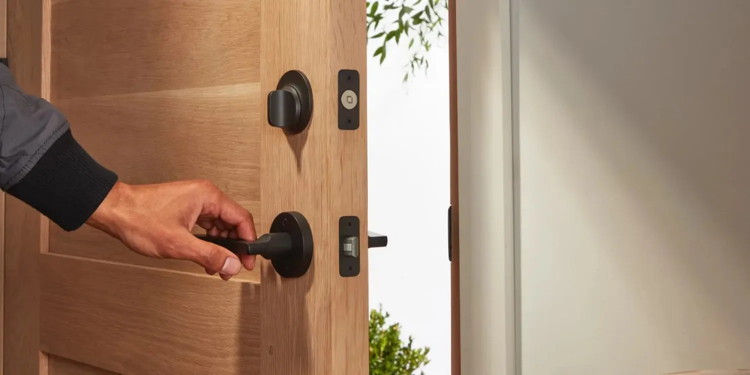
Level has been building smart locks that feel like they were made for Apple users since the very beginning, and the new Level Lock Pro might be its most exciting upgrade yet. I have been testing it ahead of my full hands-on review, and it is clear that this is the direction smart locks need to go. Home key support is still the gold standard for Apple users, and Matter over Thread brings the speed and reliability that make it work extremely well with your daily schedule.
Some of my favorite gear
Ever since Apple introduced Home Key, it has completely changed how I think about smart locks. Once you get used to walking up to your door and unlocking it with a tap from your iPhone or Apple Watch, everything else feels like a step backward. Level was one of the first brands to adopt Home Key, and the new Level Lock Pro feels like the culmination of everything the company has learned so far. After spending time with it, it is clear this is the direction smart locks needed to go, and it feels reliable enough that I'd recommend it to anyone, regardless of whether they are "tech savvy" or not.
Why did the computer go to the doctor? It had a slipped disk!
Malware Examples *
by Ron Sharp and Robert Elphick, MAGIC *
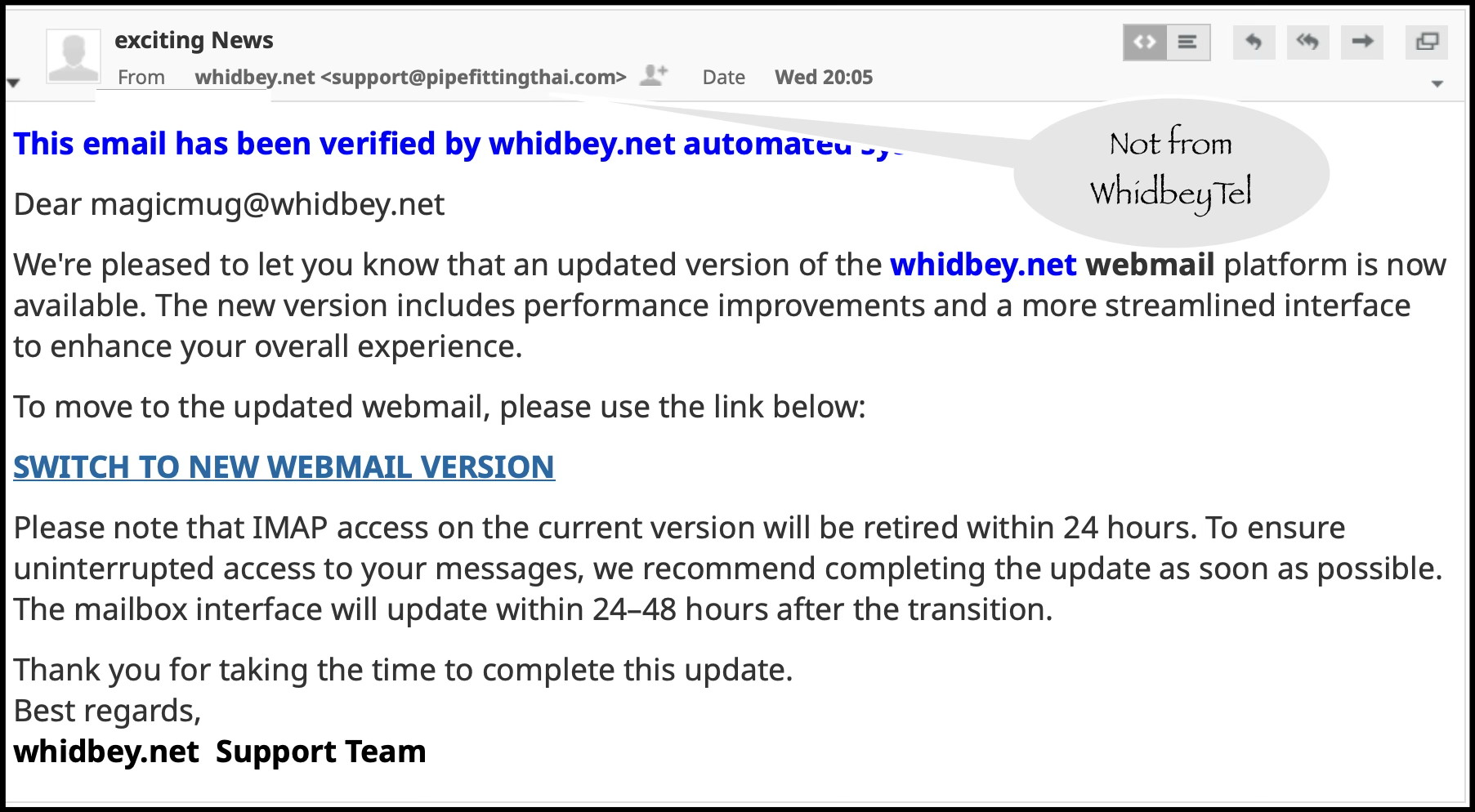
Here are some tips if you do respond to a scam email. Call your bank. Put a stop payment on your charge card if it is involved. Change your account password for whatever accounts are involved. If it's a PayPal account, log into that account and change the password. If you use a bank account online change that password. You can also set up email "rules" to block email from the sender if their email address shows. If you use Apples Mail app you'll find the "Rules" options in the Mail app Settings. You should also change the password to your email account that the scam email came to.
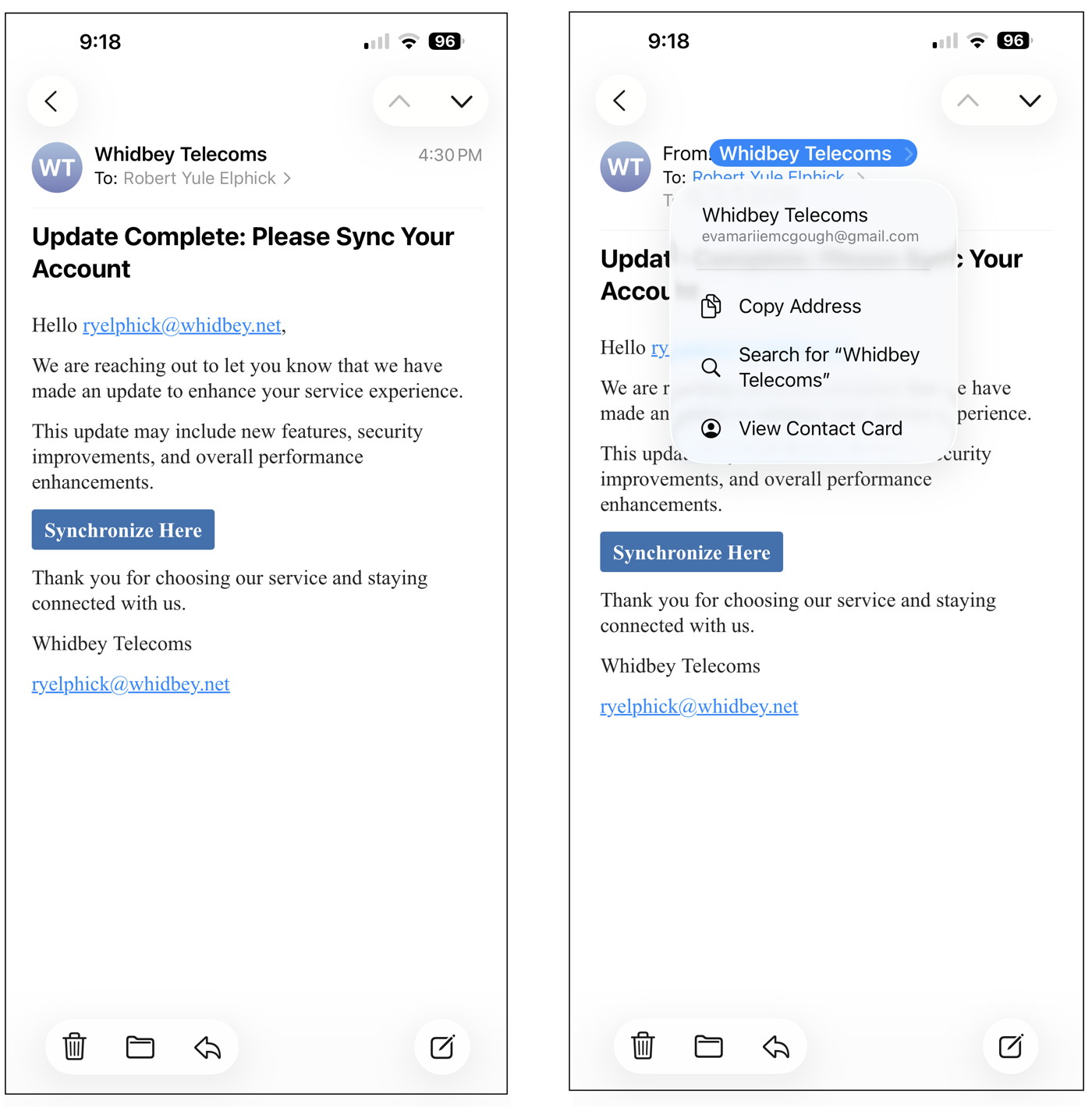
These are NOT from Whidbey Tel They are Phishing to get your personal details DO NOT CONTACT.
An iPhone email (left) and after clicking on "From" (right) These are NOT from Whidbey Tel They are Phishing to get your personal details DO NOT CONTACT.
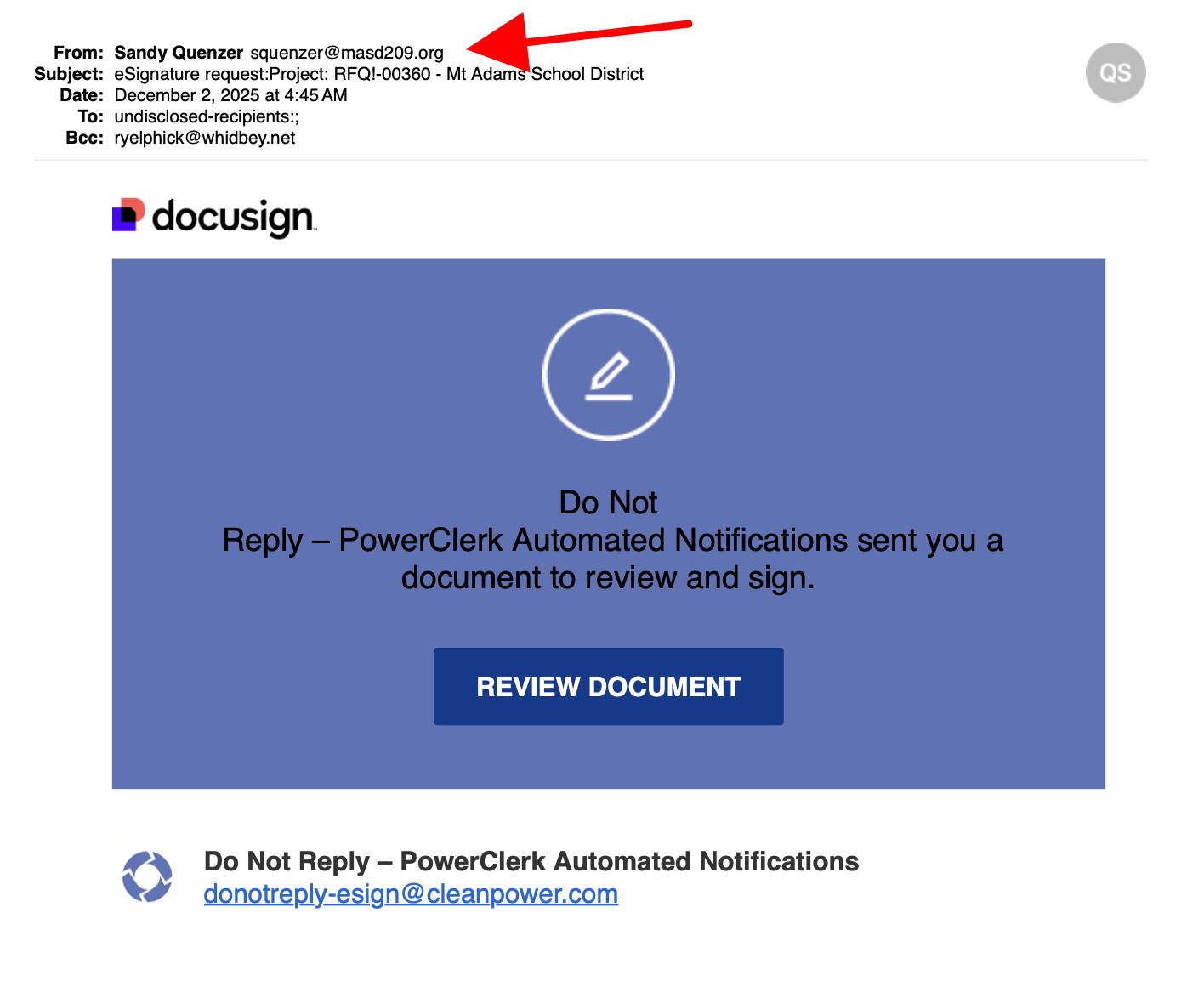
SCAM - see the From (arrowed) It is NOT from docusign. They are Phishing to get your personal details DO NOT CONTACT.
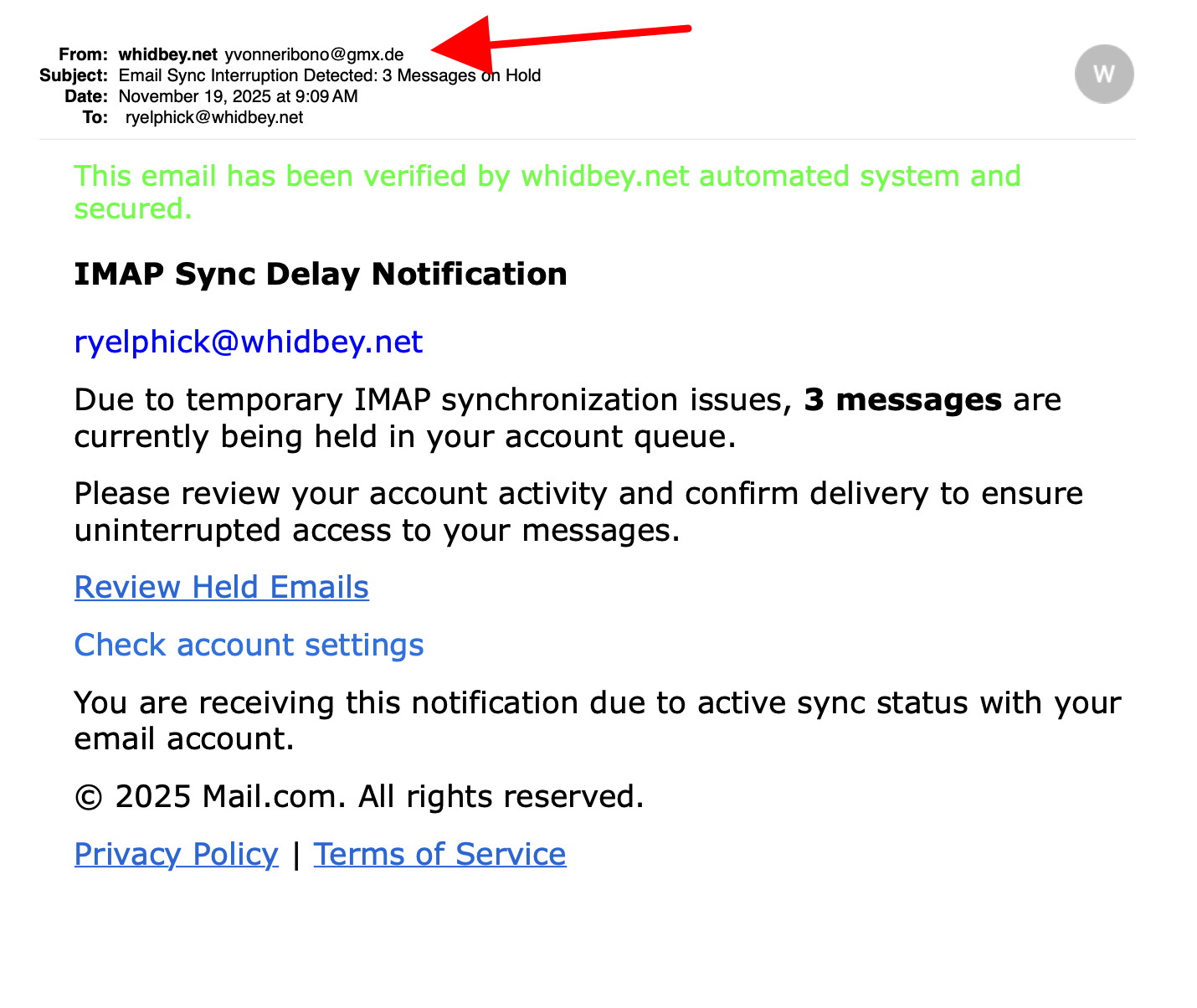
SCAM - see the From (arrowed) DO NOT CONTACT.
Internet Crime
Any one bothered by internet criminal activity should report it to the Federal Bureau of Investigation Internet Crime Complaint Center (IC3) at this web page. This includes phishing, malware, spoofing, any demand for money.
Sell or Swap
by MAGIC
Got something you would like to sell or give away? Need something second hand or out of date? Contact MAGIC at this email .
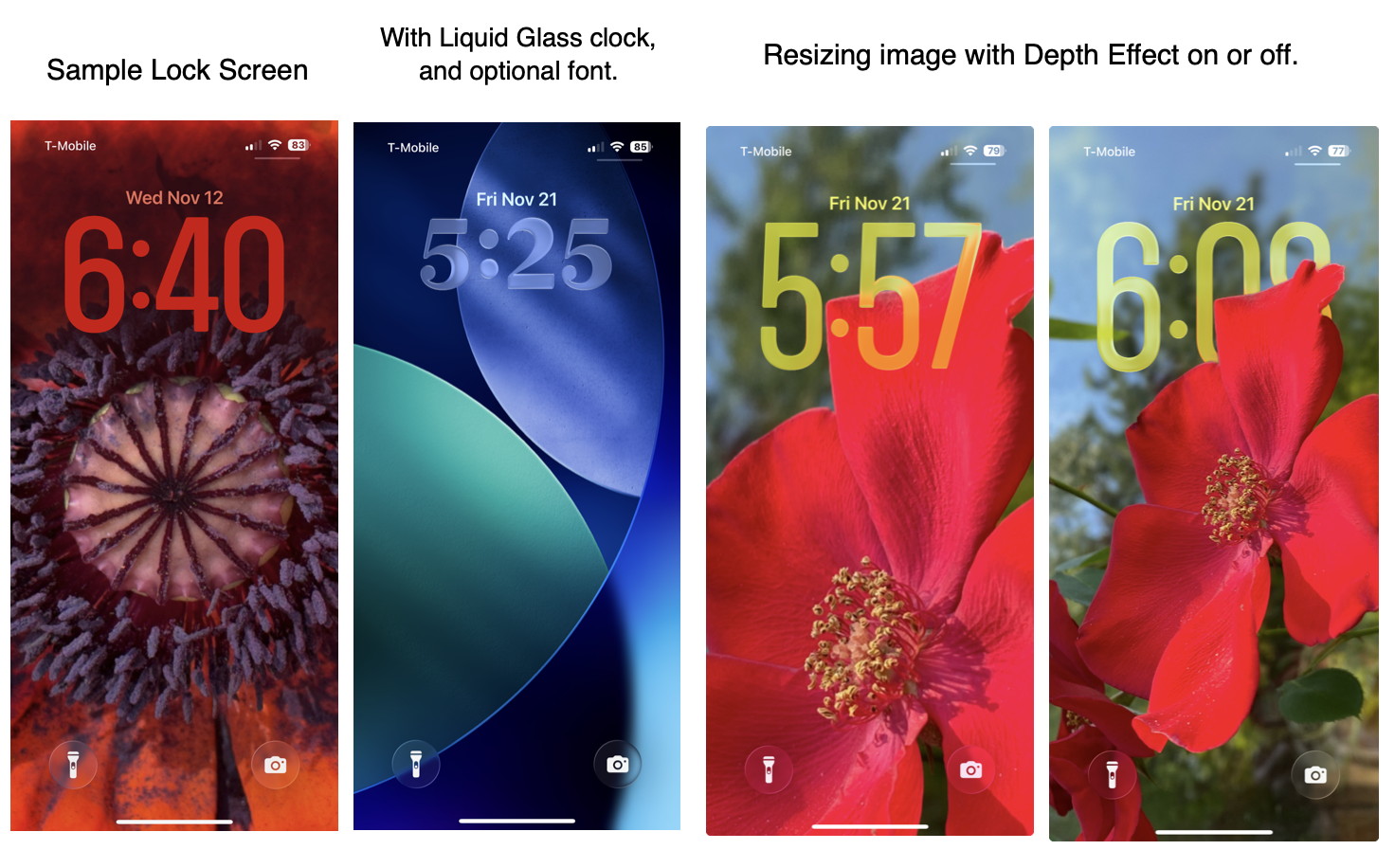
My iPhone home screen looks great. It's a close up image of a bright red poppy. iOS26 has added more options for adjusting the home and lock screens. So I spent a little time with it.
With this upgrade you can now change the font, the size, and the color of the digital clock, if you have a new enough iPhone to always display the time. And with the liquid glass visual options you can really spend a lot of time adjusting your Lock screen and Home screen. Just selecting a background picture for the Lock Screen takes me a while. For the Home Screen I prefer a simple, mostly solid color image so it's easier to see the app icons. That's where it's nice to have the "blurred" option. The Lock screen, of course, is the image you see when you first pick up your phone before it unlocks and shows your app icons. You're on the Home screen when you see all the icons.
Now here are other new features I just discovered, "3D Spacial Effect" and "Depth Effect." The Spacial effect is great. If there is enough depth in a photo, foreground to background, it adds a 3D effect so as you move the device the foreground and background move independently. It's really amazing and amusing.
Turn the 3D Effect on and off use the icon that looks like this…
To access the depth effect click on the ellipse icon. The Depth Effect allows you to adjust the digital time clock numbers. I haven't figured this out completely, but some colors for the clock digits are adjustable light to dark while others aren't. Not only that, but some clock digits can be dragged larger while others can't. It must depend on whether you have the Depth Effect on or off as well as which font you choose, but it's a bit confusing to determine.
Another observation is with zooming the lock screen image in or out when using the depth effect determines whether the clock digits are in the background or move on top of the foreground. You can see this in the two rose images below. It's fun but somewhat mind numbingly complex for a phone screen image.
Then, of course, you can set up several different Lock Screen and Home Screen choices so you can quickly switch to a different look. With different views set up, you can change it simply by touching and holding on the lock screen to switch it or edit it. This is another feature I just learned. I haven't changed my wallpaper often but now I might, since iOS26 with it's Liquid Glass and Depth Effect piqued my interest. Maybe in a future iteration of iOS they'll offer cycling through your different iPhone wallpaper like they do with desktop wallpaper!
If you have an older phone that doesn't display the time always on feature, you still have options for the images you choose for the Home and Lock screens.
How much time did I spend figuring all this out? Don't ask!
MAGIC, the Macintosh Appreciation Group of Island County, serves people who use Macintosh computers, software and peripherals. Our goal is to share information and get answers to questions to make us more productive with our use of technology. Our monthly meetings give us a chance to discuss computer problems and share ideas with other Mac users, feature speakers on specific topics, and to keep apprised of Apple news.