Customize Mac Folders

CONTENTS

Tags
Files and folders can be tagged with several different colors. The tag colors can be assigned labels in the Finder. Below is an example where the red tag has been relabeled to "Urgent". When in the Finder, go to the Finder in the Menu bar to select the Settings and then select the Tags at the top to get this window:
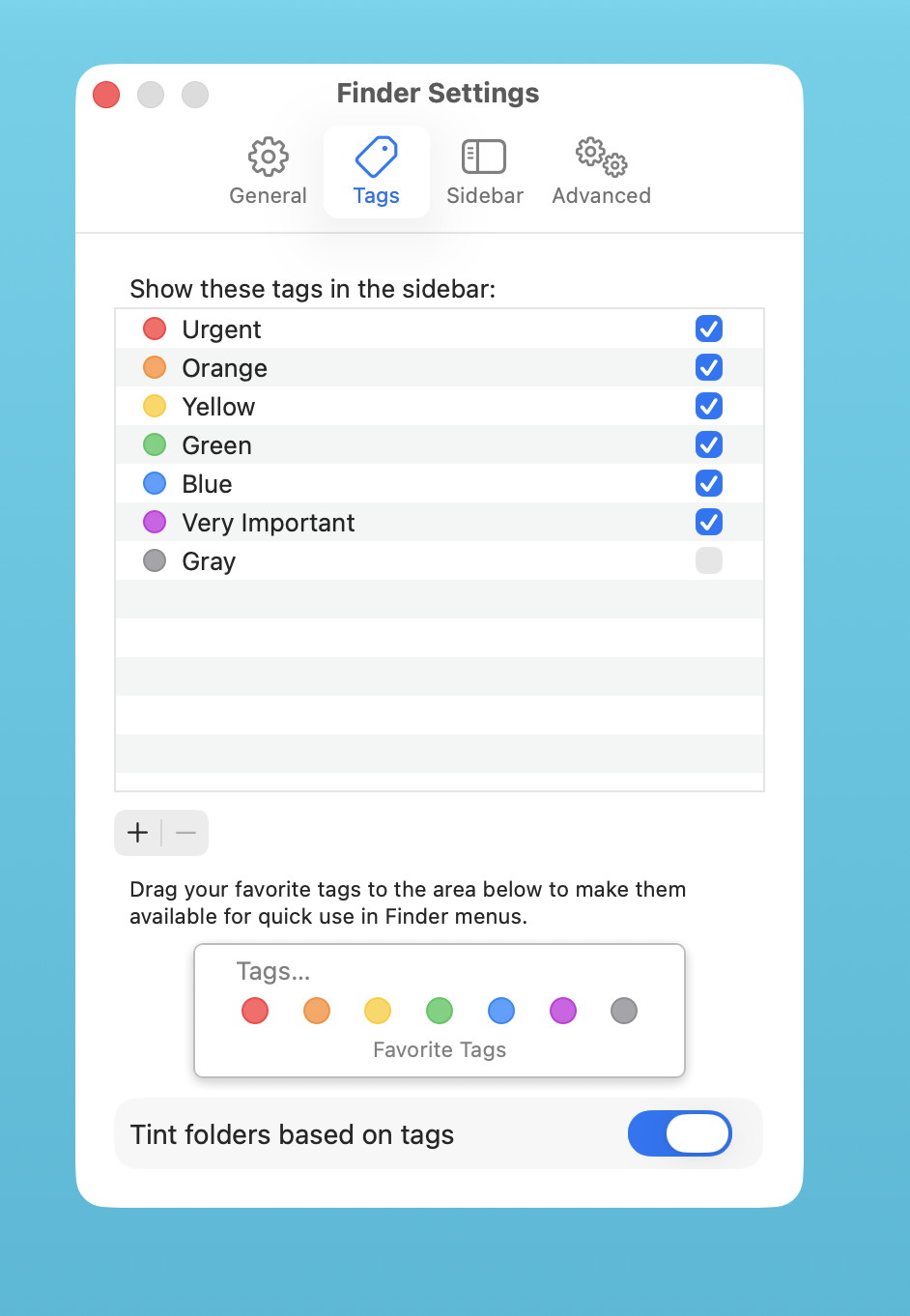
Note that you can set the color of a folder to be the same as the Tag color by setting the "Tint folder based on Tags" at the bottom of the window.
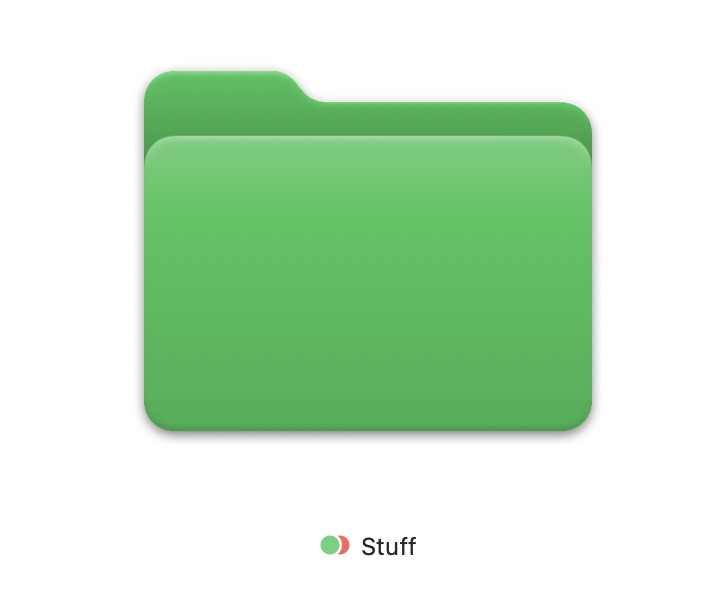
It is possible to set more than on Tag for any File or Folder. Here is a Folder with two Tags set, Green and Red.
Rename
To rename a folder, right click on it and then select "Rename" on the pop-up menu.
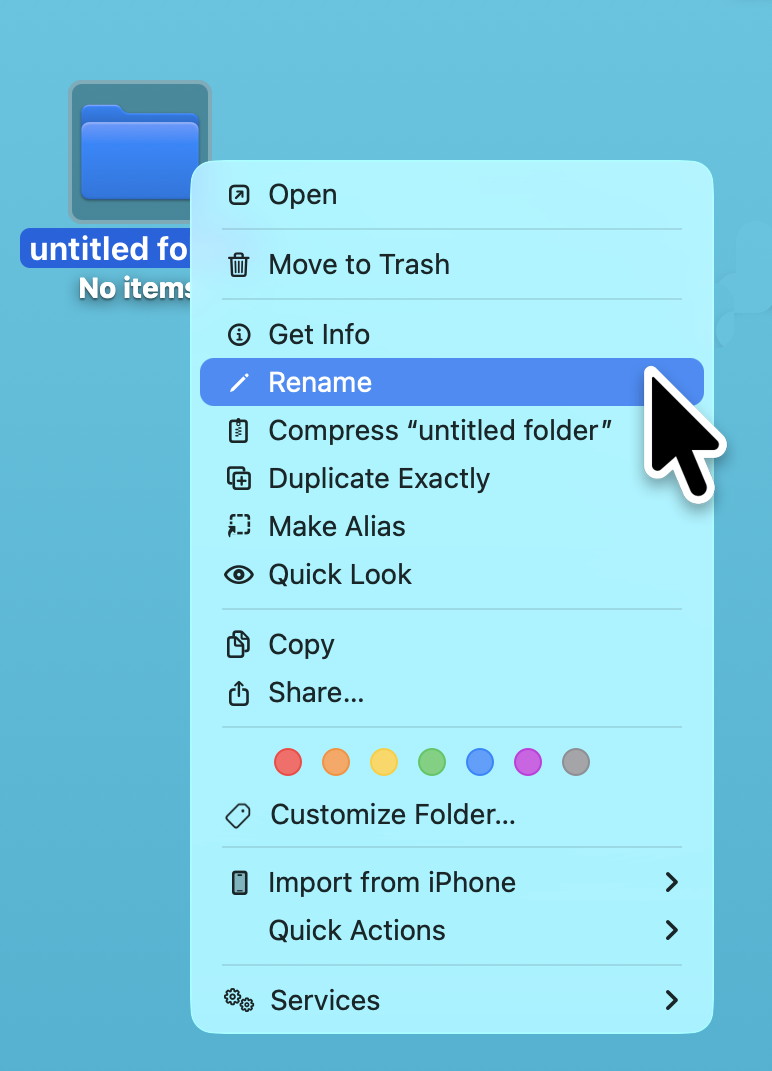
You can also rename a Folder (or File) by a slow double click on the name and the name will change color and you can then retype the name and follow with a Carriage Return.
Change color
Change a folder's color with these steps:
- Select your folder and click File > Get Info.
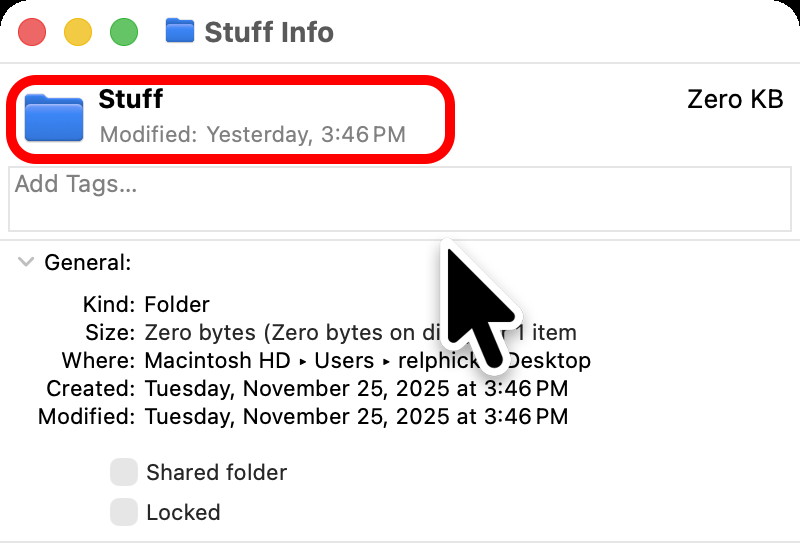
- Select the folder icon at the top of the Get Info window and copy it.
- Open Preview and select File > New from Clipboard.
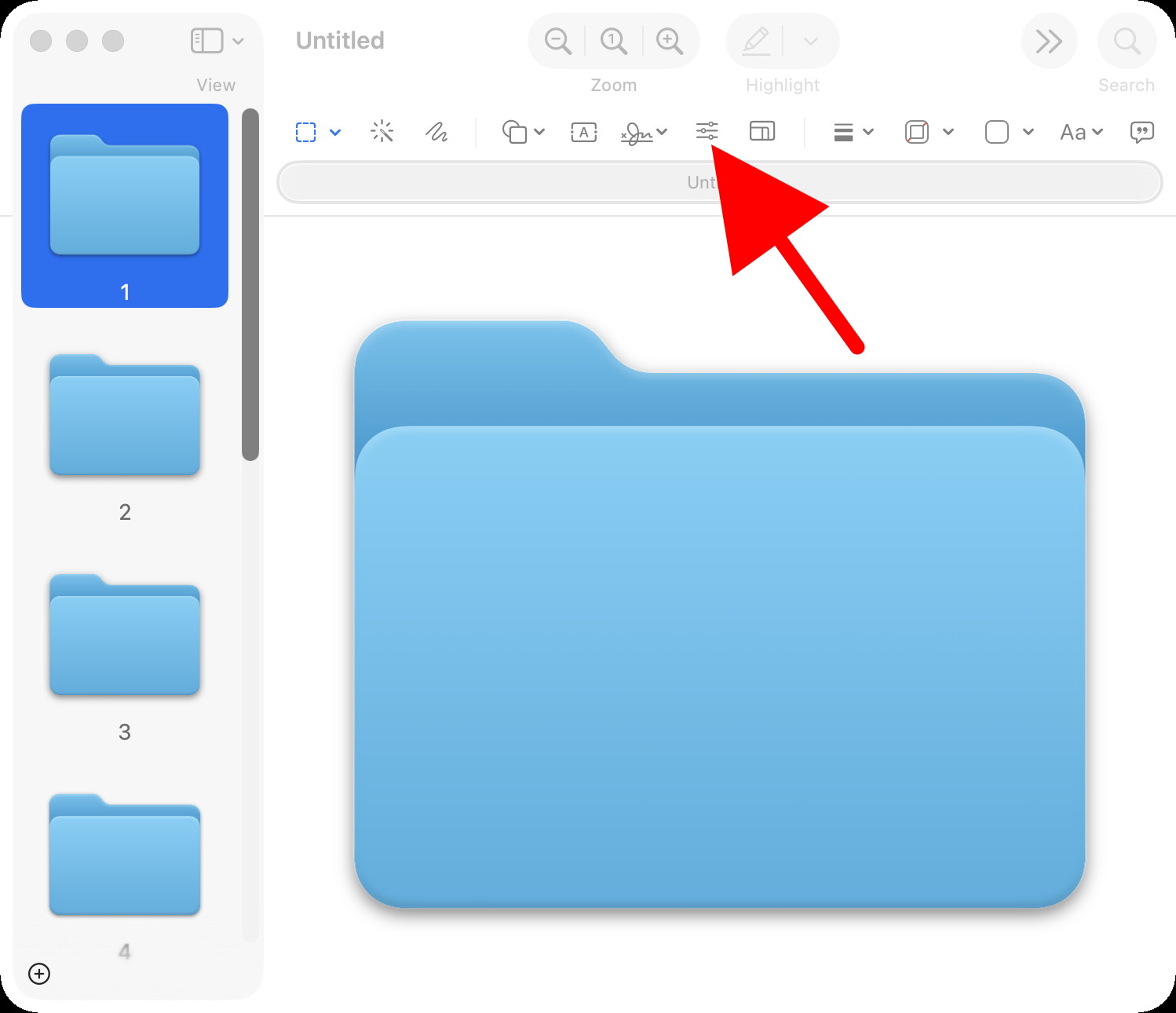
- Select the Markup tool, then the Adjust Color icon.
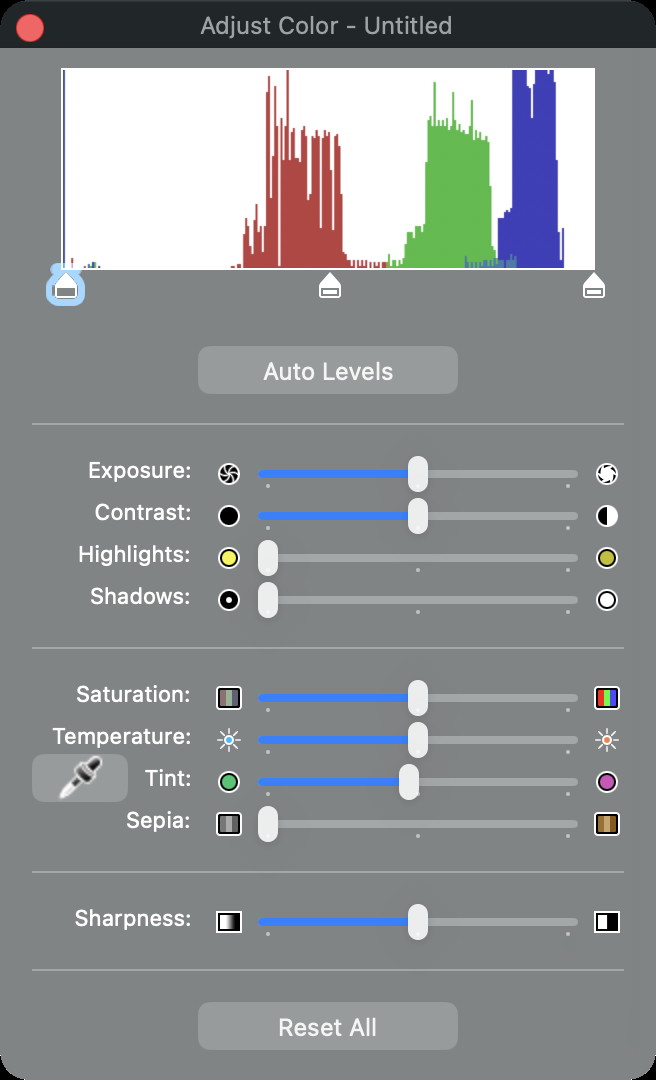
- Use the Tint slider to change the color, then copy the adjusted folder image.
- Select the old folder icon in the Get Info window and paste in the new image.
Add graphic and/or emoji
Change a folder's icon or emoji in the following steps:
- Right click on the folder and then select "Customize folder..." in the pop-up menu

- Select one of the many icons to put into the Folder icon

- Or, Select the emoji button at the bottom to get many emojis
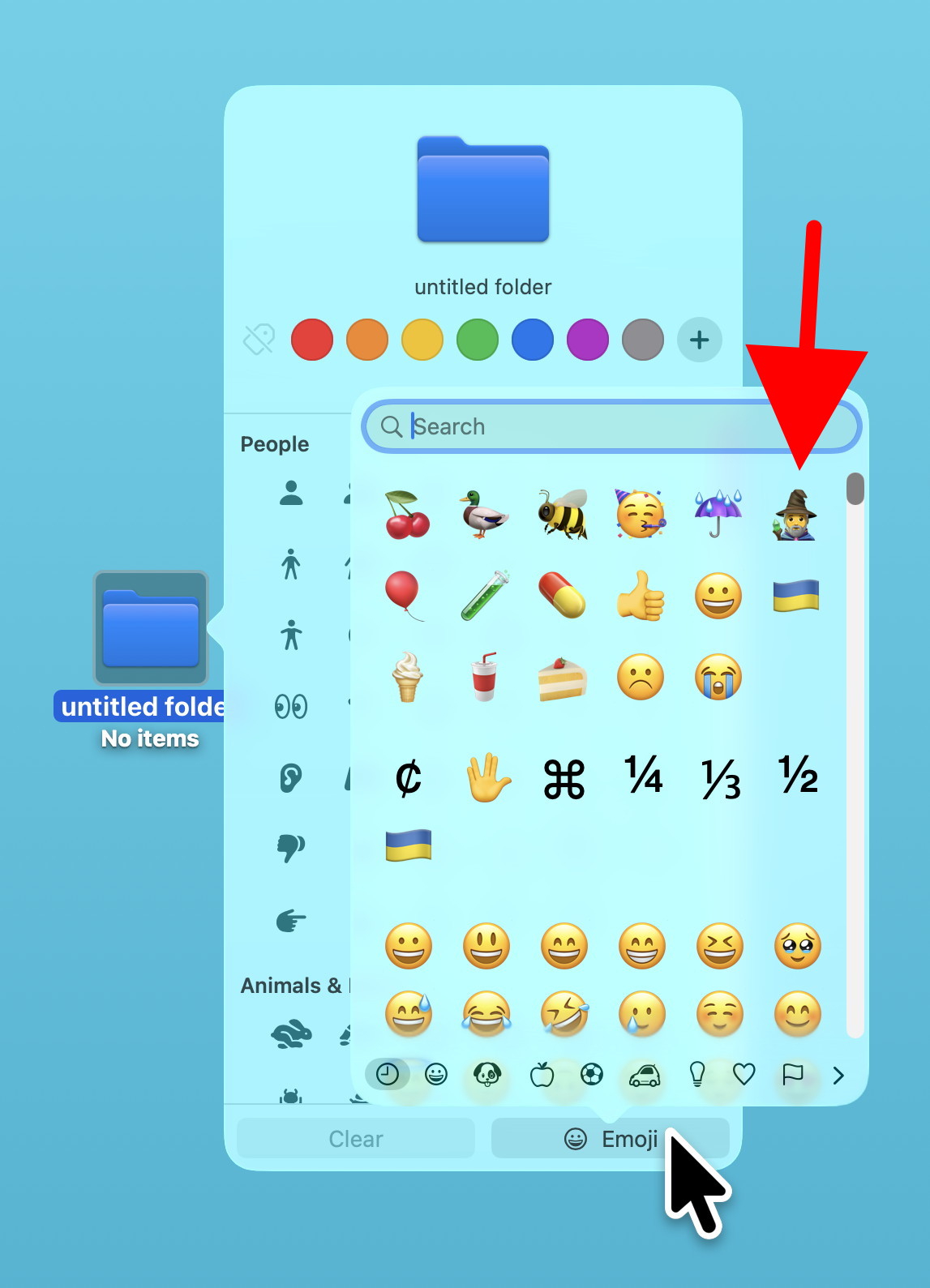
Here I have selected the wizard emoji and get this: